To use the Peppermint E-Banking module (QR payment collection, bank reconciliation, and payment proposals), each bank account must be linked to an accounting account.
Procedure
1. Open the Settings → Chart of Accounts menu.
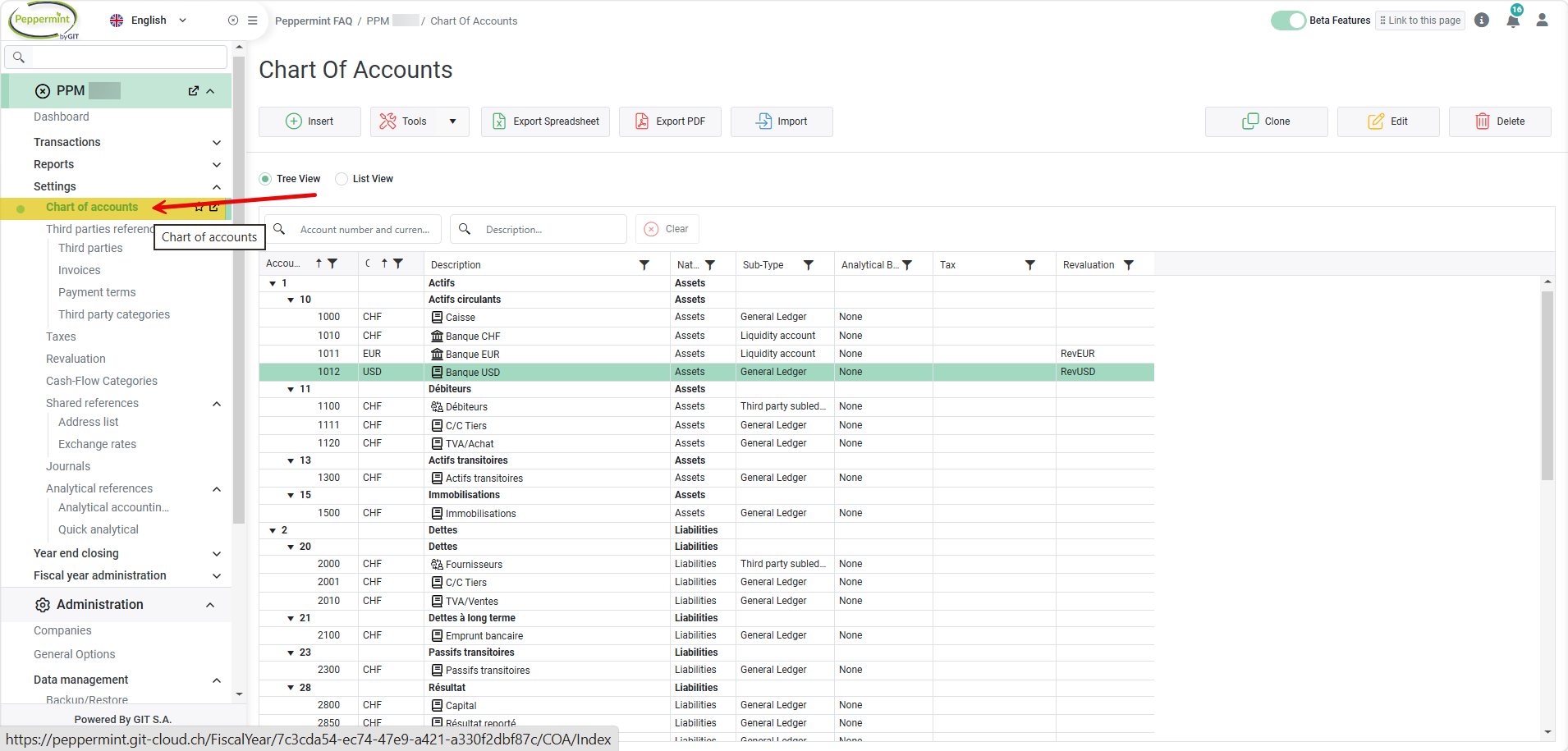
2. Select the accounting account corresponding to the bank account you want to configure, then right-click and select Change account type to → Liquidity account.
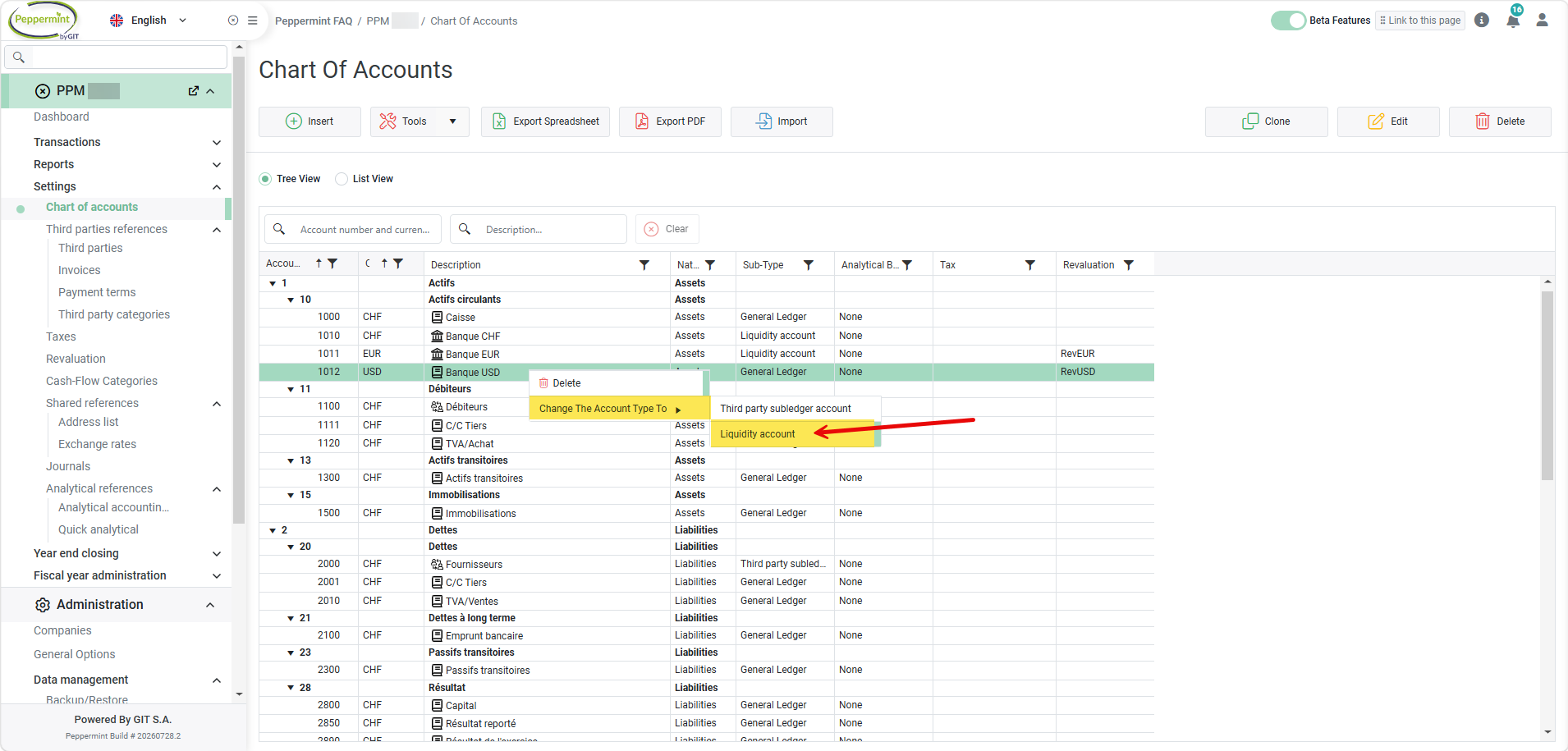
3. Edit the accounting account and complete the required banking information:
- IBAN;
- Bank name;
- BIC;
- QR-IBAN (if applicable);
- Bank account holder's address;
- Any other information required depending on the E-Banking features you wish to use.
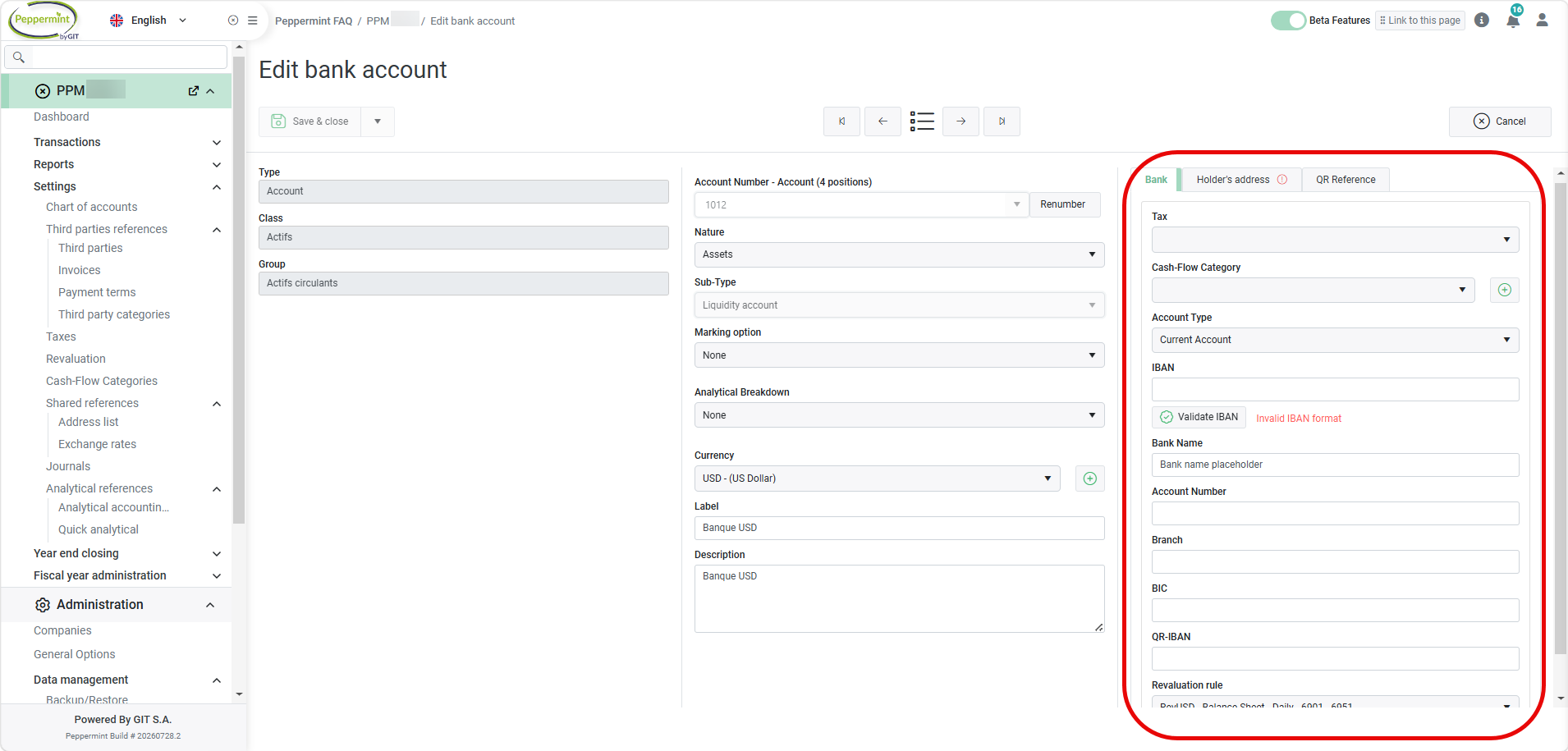
4. Click Save & Close to save the configuration.
Result
The bank account is now linked to the accounting account. You can use the Peppermint E-Banking features, such as QR receipt processing, bank reconciliation, and payment proposals.
Important
- A bank account can only be linked to a single liquidity account.
- If multiple bank accounts are used, each one must be configured with its own accounting account.
- The information entered (IBAN, BIC, QR-IBAN, etc.) may be required depending on the E-Banking features being used (QR payment collection , bank reconciliation, and payment proposals).
Was this article helpful?
That’s Great!
Thank you for your feedback
Sorry! We couldn't be helpful
Thank you for your feedback
Feedback sent
We appreciate your effort and will try to fix the article